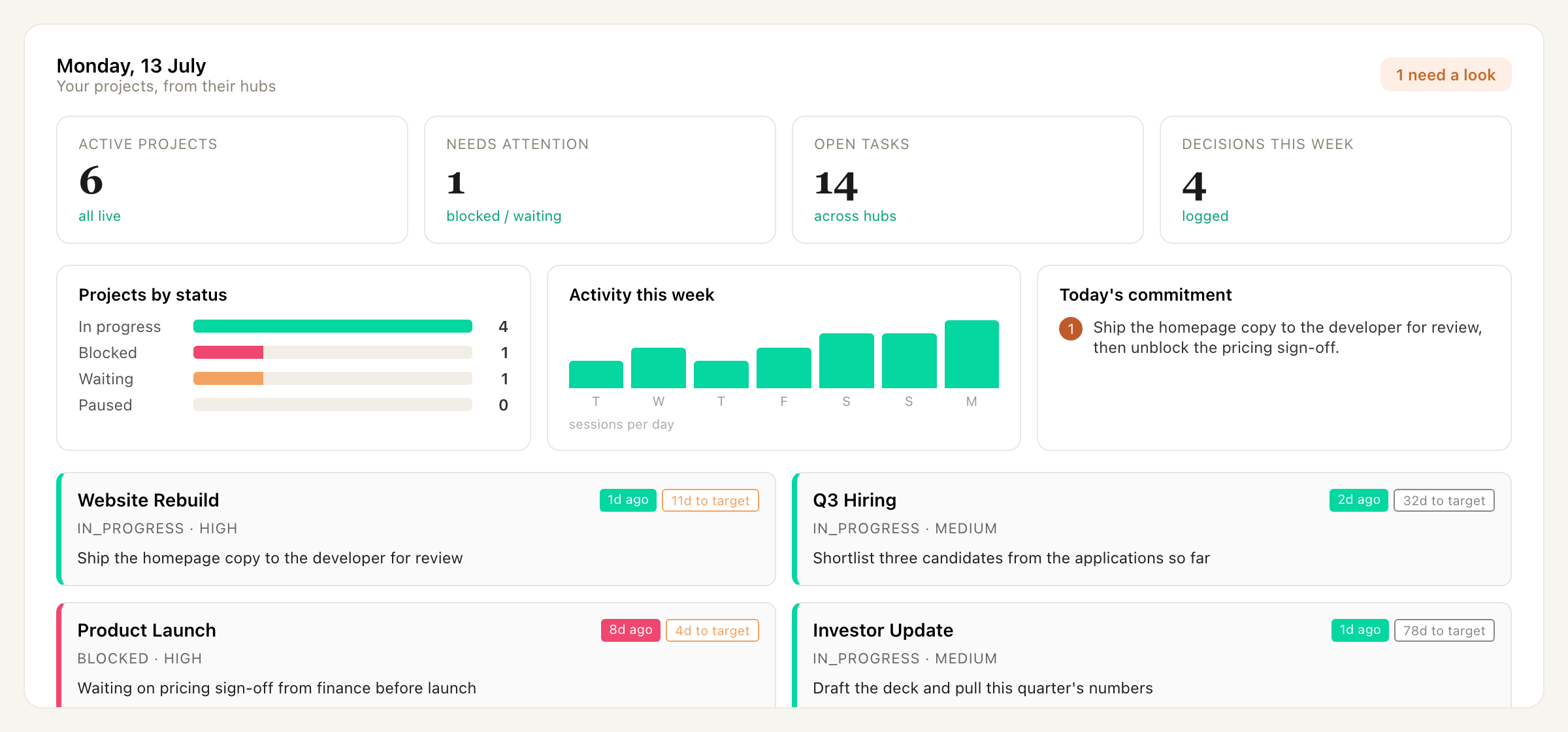
Five paste-prompts that turn Claude Code and Obsidian into a portfolio view that refreshes itself, a daily routine that asks the capacity question, and a per-project loop that keeps the next action current. About an hour to install. About six working weeks back across a year.
You're running five projects. Maybe seven. Some half-living in Claude threads, some in Notion, some in your head. Every morning you spend twenty, thirty minutes per project rebuilding context. What you decided last, where you got to, what the next concrete step was. Across the portfolio, that's an hour gone before any real work happens. On a Monday, sometimes two.
The hour isn't on your calendar. It isn't on your to-do list. It just evaporates, every morning, into the gap between knowing the project exists and being able to work on it.
Mission Control fixes this in five steps.
Five prompts, pasted into Claude Code in sequence. One install pass. Then you live inside slash commands, with the dashboard open in Obsidian as your portfolio view. The reconstruction tax drops to almost zero. Across a year, that's about six working weeks back.
The five prompts are right below. Each step tells you what the prompt builds and why it works the way it does. Hit Copy prompt, paste into Claude Code, follow the questions.
Let's jump in.
Paste Prompt 1. Claude Code asks you four short questions, then creates the folder tree, an _about-you.md operating filter, your first project hub, the CLAUDE.md helper, the Projects.base query, and the Mission Control.md dashboard page. Six building blocks, one paste.
Paste Prompt 2. A small three-section template lands inside your first project's sessions/ folder. Goal, current state, next. This is what /wrapup will fill in later.
Paste Prompt 3. Installs the slash command that scaffolds new project hubs with consistent frontmatter and structure. From here, every new project gets the same shape automatically.
Paste Prompt 4. Installs the morning routine that reads every project hub, asks the capacity question, archives yesterday's daily file, and writes today's.
Paste Prompt 5. The inside-a-session pair. /pickup orients Claude before you sit down. /wrapup writes the session note and updates the hub at the close.
The flow is Obsidian first, Claude Code second, then point Claude Code at the vault Obsidian created.
Free, from obsidian.md. Open it once after install.
First time you open Obsidian you hit the vault picker. Click "Create new vault", give it a name, click Browse to pick where it lives on your computer, then Create. Obsidian makes the folder for you. Call it Mission Control if you want to match this resource, or anything else that feels right (your own name, your initials, Vault). You can rename later. The name only matters to you. The install doesn't depend on it.
Settings, Core plugins, toggle Bases on. Bases ships with Obsidian 1.9+ (released 2025) but is not always enabled by default. This is the engine behind your Mission Control dashboard. Without it, Mission Control opens to an empty page. Nothing else from the community plugin store is needed. Everything else the system relies on (Properties panel for frontmatter, wikilinks, backlinks, outline view) is core Obsidian, on by default.
Anthropic's local coding tool that runs on your laptop and writes files into your vault. Download from claude.ai/code. Sign in with a Claude account. The free tier is enough for the install. Pro or Max is the comfort level for daily use. Make sure you're installing the local Claude Code, the one that runs on your machine. The "Code" tab inside claude.ai in a browser is a different product (cloud-sandboxed, works against GitHub repos, not local folders) and isn't what we're using here.
Two paths. Pick whichever you prefer.
Open your terminal. On Mac, that's Terminal or iTerm2. On Windows, that's Windows Terminal or PowerShell. Get the path to your vault folder (Mac: drag the folder from Finder onto the terminal window. Windows: Shift + right-click the folder, then "Copy as path"). Type cd followed by a space, paste the path, press Enter. Run claude.
More visual, less terminal. Install VS Code from code.visualstudio.com. Open the Extensions panel and install Anthropic's official Claude Code extension. File menu, Open Folder, pick your vault folder. Open the integrated terminal (Ctrl plus backtick) and run claude. Or use the extension's chat panel directly.
Friendlier terminal alternatives exist, iTerm2, Warp, others, and there are alternative IDEs too. Not covered here. The two paths above are enough to run the install.
Claude Code does the writing. It scaffolds the folder structure, installs the skills, updates files when you run /morning, /pickup, /wrapup. Obsidian does the reading. It turns the markdown files Claude writes into a navigable workspace with Properties panels, dashboards, and links between files. The files themselves are plain markdown. Open them in anything. Nothing is locked in. Your work outlives any single tool.
A vault, in Obsidian's terms, is just the folder Obsidian opens. You already made one in step 2. Claude Code is about to fill it.
Paste Prompt 1 (the box below). Claude Code asks four short questions first: your name, your role, what you're trying to do and why, the rules you want Claude to work by. Then two short questions about your first project (name, next step). Then it creates the building blocks:
_about-you.md file at the vault root with three sections (About me / About my work / My rules) that Claude reads every session as your operating filterCLAUDE.md helper file at the vault root, auto-loaded by Claude Code every time you open the vault. Carries a helper persona, a common-problems reference, the file paths the skills will use, and light conventions for where drafts, research, and references live inside a project folderProjects.base file at the vault root. Obsidian's Bases file format. Defines the query underneath Mission Control (scan 01-Projects/ for any file with type: project in its frontmatter, show the four hub fields as columns)Mission Control.md page at the vault root. The human-readable dashboard. Opens in Obsidian as a heading, a one-line description, the embedded Base table, and a short how-to note. Reads the same hubs your skills will readOne paste. Six building blocks. Two minutes.
Back in Obsidian, open Mission Control.md. You should see your first project in the table. If the table is empty, the Bases plugin isn't enabled yet (Settings, Core plugins, toggle Bases on).
You are helping me set up a vault for the projects I run with Claude Code. I am not a developer. Walk slowly. Ask one question at a time. Explain what you are about to do before doing it. Never use em-dashes in anything you write.
Follow these steps in order. Do not skip ahead.
1. Greet me, then tell me: "I'll ask you four short questions about yourself so I can be useful from day one, then two about your first project. Then I'll create the folder structure, the about-you file, your first project hub, a CLAUDE.md helper, and your Mission Control dashboard. Six building blocks in one pass." Wait for my acknowledgement.
2. Ask: "What's your name?" Wait for my answer.
3. Ask: "Your role, one line, how you'd say it to someone you just met." Wait for my answer.
4. Ask: "What are you trying to do right now, and why does it matter? This is the goal above any single project, the thing that would change something real if it happened." Wait for my answer. If I give only one half (the what, not the why, or vice versa), ask the other half before moving on.
5. Ask: "How should I communicate with you, and anything I should always or never do? 'Nothing yet' is a fine answer to the second part." Wait for my answer.
6. Ask: "What do you want to call your first project? Give it as you would say it out loud." Wait for my answer.
7. Ask: "What is the very next concrete step on that project? One line." Wait for my answer.
8. Check the current working directory. Look for a `.obsidian/` folder inside it (the marker that this folder is an Obsidian vault).
- If `.obsidian/` exists, tell me: "I'm about to write the project structure into [show the current working directory]. Looks like an Obsidian vault. Ready?" Wait for my confirmation.
- If `.obsidian/` does not exist, tell me: "I don't see a `.obsidian/` folder here, so this might not be the vault Obsidian created. The current folder is [show cwd]. Want me to proceed anyway, or do you want to point Claude Code at your vault folder first?" Wait for my answer. If I say to proceed, continue. If I say to point Claude Code at the vault first, stop and tell me to relaunch Claude Code inside the vault folder.
9. Inside the current working directory (the vault root), create the PARA subfolder structure. Slugify the project name for the project folder (lowercase, spaces to hyphens, no punctuation):
01-Projects/{project-slug}/sessions/
02-Areas/
03-Resources/
04-Archives/
05-Daily-Files/archive/
10. In the vault root, create `_about-you.md` with this exact content, substituting my answers:
# About you
_Three sections. Edit any of them whenever something shifts. The more concrete you are, the better I can calibrate._
## About me
- **Name:** {name}
- **Role:** {role}
## About my work
- **What I'm trying to do right now, and why it matters:** {what-and-why}
## My rules
- **How I want you to communicate, and things to always or never do:** {comms-and-rules}
11. Inside the project folder, create a hub file named "{Project Name}.md" using the original project name with title case. Populate it with the content below, substituting my answers (priority defaults to medium and target_date defaults to none, both are easy to edit later). The template is shown indented for readability, write the file with no leading whitespace on any line.
---
title: {project name}
type: project
status: in_progress
priority: medium
next_action: {next step}
target_date: none
created: {today's date in YYYY-MM-DD}
---
# {Project Name}
## Decisions Log
_Append decisions here as you make them. Date, decision, reasoning. Three or four entries is enough for future-you to know why the project is shaped the way it is._
## Notes
_Anything that doesn't fit elsewhere._
12. Create a file called "CLAUDE.md" in the vault root (not inside any subfolder). Populate it with this exact content:
# Project vault
You are helping me run my project vault. I am not a developer. Walk slowly. Ask one question at a time. Explain what you are about to do before doing it. Never use em-dashes in anything you write.
## About you
At the start of every session, read `_about-you.md` in full before responding substantively. Apply it as the operating filter. The goal in "About my work" is what to push back with when sessions drift. The rules in "My rules" govern how you communicate. If `_about-you.md` is missing or empty, ask me to populate it before continuing.
## What lives where
- Project hubs: `01-Projects/{slug}/{Project Name}.md`. One folder per project, one hub markdown file with frontmatter (status, priority, next_action, target_date) plus a Decisions Log body section.
- Session notes: `01-Projects/{slug}/sessions/{YYYY-MM-DD}-{slug}.md`. Written by `/wrapup` at the close of a working block.
- Daily files: `05-Daily-Files/today.md` is today's. `05-Daily-Files/archive/{DD-MM-YY}.md` holds previous days. Written by `/morning`.
- Mission Control dashboard: `Mission Control.md` at the vault root, backed by `Projects.base` (also at vault root). The .base file queries every project hub in `01-Projects/`. The .md page is the human-readable wrapper. Open Mission Control in Obsidian to see the portfolio.
- Skills: `~/.claude/skills/{name}/SKILL.md`. `/new-project`, `/morning`, `/pickup`, `/wrapup` are installed there.
## Where things go inside a project
Inside a project folder, the convention is:
- **Drafts:** anything you're writing for an output (posts, PRDs, emails). Lives in `01-Projects/{slug}/drafts/`.
- **Research:** articles, notes, references you're gathering on the project's topic. Lives in `01-Projects/{slug}/research/`.
- **References:** fixed assets you keep coming back to (specs, brand docs, terminology). Lives in `01-Projects/{slug}/references/`.
These subfolders only need to exist when there's something to put in them. Create them on the fly. If you're unsure where something belongs, ask me.
## How the loop works
- `/morning` runs once a day. Reads each project hub, asks the reader what they are committing to today, writes the daily file.
- `/pickup` runs at the start of any working block on a project. Reads the project hub plus the latest session note. Orients you for the work.
- `/wrapup` runs at the close of a working block. Asks the reader what they were trying to do, what state they got to, what the next concrete action is. Writes the session note, updates the hub's next_action.
- `/new-project` adds a new project hub to the vault when the reader is ready to track another project.
## Common problems
- **`/morning` says it cannot find any project hubs.** Check that `01-Projects/` exists and contains at least one folder with a markdown file inside. Each project folder must hold one hub markdown file.
- **A skill is installed but the slash command does not appear.** Reload Claude Code. The skill file must be at `~/.claude/skills/{name}/SKILL.md` exactly. Name, folder, and file path all matter.
- **A hub's frontmatter is not being read.** Check the YAML at the top of the hub file closes with three dashes (`---`) on their own line. Missing close = whole file parsed as YAML and silently failing.
- **The daily file is not being archived.** Check that the existing `05-Daily-Files/today.md` has a date header line (e.g. `# Sunday 10 May 2026`) at the very top. `/morning` reads that header to figure out which date to archive under.
- **`/wrapup` cannot find the project to write a session note for.** It infers the project from the current working directory or from a project slug you pass. If neither is clear, it will ask. Tell it the project name as it appears in `01-Projects/`.
- **Mission Control opens to an empty page in Obsidian.** The Bases core plugin is not enabled. In Obsidian: Settings, Core plugins, toggle Bases on. Bases ships with Obsidian 1.9+ but is not always enabled by default. Reload Mission Control after enabling.
## How to behave
- Walk slowly. Explain what you are about to do before doing it.
- Ask one question at a time.
- If a file does not exist, tell me before creating one.
- If something does not work, check the Common Problems section above before guessing.
13. Create a file at the vault root called `Projects.base`. This is the Obsidian Bases file that queries every project hub in the vault. The Bases plugin (core in Obsidian 1.9+) renders this as a live table. Write the file with the content below. No leading whitespace on any line. The content is shown indented here purely for readability.
filters:
and:
- file.hasProperty("type")
- type == "project"
- file.folder.startsWith("01-Projects")
properties:
status:
displayName: Status
priority:
displayName: Priority
next_action:
displayName: Next action
target_date:
displayName: Target date
views:
- type: table
name: All projects
order:
- file.name
- status
- priority
- next_action
- target_date
14. Create a file at the vault root called `Mission Control.md`. This is the human-readable dashboard page. It embeds the Base view so the reader opens one file to see the whole portfolio. Write the file with this exact content. No leading whitespace on any line. Content shown indented here for readability.
# Mission Control
The portfolio dashboard. Every project hub appears below, surfaced through `Projects.base`. Status, priority, next action, and target date stay live because `/wrapup` writes those fields back at the close of every working block.
![[Projects.base]]
## How to use this
Open Mission Control first thing each morning. Scan the next-action column across the portfolio before running `/morning`. The dashboard tells you what is outstanding. `/morning` makes you commit to one chunk of it. If a project has not moved in a fortnight, that is a `/pickup` worth running to see whether it still belongs in the active set.
This page reads the same hubs your skills already read. Same source, two readers.
15. Confirm what you created. Show me the folder tree, then the contents of `_about-you.md`, then the project hub, then `CLAUDE.md`, then `Projects.base`, then `Mission Control.md`.
16. Tell me: "Six building blocks in. Two next steps: (1) In Obsidian, open `_about-you.md` and read it through. Make sure it sounds like you. That file is the operating filter I'll read at every session. (2) In Obsidian, open `Mission Control.md`. You should see your first project in the table. (If the table is empty, the Bases core plugin isn't enabled yet, Settings, Core plugins, toggle Bases on.) Come back when you're ready for Prompt 2 (session note template)." Then stop. Do not create anything else.
The reframe sits underneath everything else in this resource and it's worth naming early: context is the asset. Most AI setups treat context as input. You open a chat, paste the situation, explain what you've been working on, and start working. When the chat ends, the context goes with it. Tomorrow you do it all again.
That's the wrong shape. The context is the thing that took the longest to build. The decisions you've made on a project, the trade-offs you've considered, the things you've already ruled out, the people involved, the constraints you can't move. All of it accumulated. None of it disposable. If a junior PM joined the project tomorrow, the first two weeks would be them rebuilding what's already in your head.
Step 1 makes the context durable. The _about-you.md file holds the operating filter Claude reads every session, so its tone and recommendations fit your work from day one. The project hub holds the cumulative state of one project. The CLAUDE.md helper file makes the vault legible to Claude Code automatically. None of it lives inside a chat. All of it survives.
Paste Prompt 2. Claude Code creates the session note template at Projects/[project-name]/sessions/_template.md. Three sections: goal, current state, next action.
One paste. One file. Thirty seconds.
You are helping me add a session note template to my project vault. The vault scaffold and one project hub already exist from Prompt 1. Walk slowly. Ask one question at a time.
Follow these steps in order.
1. Ask me: "Which project are we adding the session note template to?" If only one project folder exists under `01-Projects/`, tell me which it is and proceed. If multiple, wait for my answer.
2. Inside that project's `sessions/` folder, create a file called "_template.md" with the content below. Replace `{Project Name}` (both occurrences) with the actual project name from step 1. Leave `{YYYY-MM-DD}` and `{short session label}` as literal placeholders, `/wrapup` will substitute those when it writes real session notes. The template below is shown indented for readability, write the file with no leading whitespace on any line.
---
type: session
date: {YYYY-MM-DD}
related_to: '[[{Project Name}]]'
---
# {Project Name}, {short session label}
## Goal
What you were trying to do this session. One or two lines.
## Current state
Where things stand right now. The state tomorrow-you walks into.
## Next
The very next concrete action. One line. Specific enough that tomorrow-you can act without re-reading anything else.
3. Confirm the template was written. Show me the file path and the contents. Then stop. Do not create any session notes yet, those get written by `/wrapup` once the skills are installed in later prompts.
The session note is where progress lives, per project. The daily file holds today's intent. The session note holds what actually moved. Separating the two stops the daily file from becoming a progress log nobody reads, and it stops the project hub from being the only place forty sessions of detail get crammed into.
When /pickup runs at the start of a working block (Step 5), it reads the most recent session note plus the hub. The session note holds the conversational thread, where you got to last time, what you were partway through. The hub holds the structural state, status, next action, decisions made so far. Two readers, two purposes, one consistent template.
The template is small on purpose. Three sections, no frontmatter beyond what /pickup and /wrapup will write automatically. Anything bigger gets ignored. Anything smaller fails to carry the working state across sessions. This shape sits at the floor of what works.
Paste Prompt 3. Claude Code writes a SKILL.md file to ~/.claude/skills/new-project/. After install, you type /new-project whenever you're starting something new. The skill scaffolds a new project hub with consistent frontmatter, the right folder structure, and a starting decisions log.
One paste. One skill installed. After that, every new project gets the same shape automatically.
You are installing a Claude Code skill called `/new-project` for me. I am not a developer. Walk slowly. Explain what you are about to do before doing it.
Follow these steps in order.
1. Tell me: "I am about to create a folder at `~/.claude/skills/new-project/` and write a SKILL.md file inside it. This installs the `/new-project` slash command in Claude Code. After this runs, you can type `/new-project` in any Claude Code session to create a new project hub in your vault. Ready?" Wait for my confirmation.
2. Create the folder `~/.claude/skills/new-project/` if it does not exist.
3. Write the file `~/.claude/skills/new-project/SKILL.md` with this exact content:
---
name: new-project
description: Create a new project hub in the project vault. Use when the user says 'new project', 'add a project', or '/new-project'. Asks for project name, priority, next action, target date. Creates the project folder, sessions subfolder, and hub markdown file with frontmatter and decisions log section.
---
# New project
You are helping the user add a new project hub to their project vault. Walk slowly. Ask one question at a time.
Follow these steps in order.
1. Ask: "What is the name of the project? Give it as you would say it out loud." Wait for the answer.
2. Ask: "Priority, high, medium, or low?" Wait for the answer.
3. Ask: "What is the very next concrete step on this project? One line." Wait for the answer.
4. Ask: "Target date you would like this project done by? Format YYYY-MM-DD, or say 'none'." Wait for the answer.
5. Slugify the project name (lowercase, spaces to hyphens, no punctuation).
6. From the current working directory, check that `01-Projects/` exists. If it does not, tell the user the vault does not appear to be set up here and stop.
7. Create the folder `01-Projects/{slug}/sessions/`.
8. Write the hub file at `01-Projects/{slug}/{Project Name}.md` (use the original name with title case for the filename) with the content below, substituting the user's answers. The template is shown indented for readability, write the file with no leading whitespace on any line.
---
title: {project name}
type: project
status: in_progress
priority: {priority answer}
next_action: {next step answer}
target_date: {target date answer, or 'none'}
created: {today's date in YYYY-MM-DD}
---
# {Project Name}
## Decisions Log
_Append decisions here as you make them. Date, decision, reasoning._
## Notes
_Anything that doesn't fit elsewhere._
9. Confirm what was created. Show the user the hub file path and contents. Then stop.
4. Confirm the skill was installed. Show me the file path of the SKILL.md you just wrote. Tell me to type `/new-project` in a fresh Claude Code session to test it. Then stop.
The vault has to be machine-readable as well as human-readable. The reason the dashboard you'll build later (Mission Control) works without anyone refreshing it is that every project hub has the same four frontmatter fields in the same format. If one hub has status: and another has Status: and a third has current_status:, the dashboard stops being a dashboard and starts being a guessing game.
/new-project removes that variance. The structure is set once, inside the skill, and every new project inherits it. The naming conventions, the frontmatter, the path layout. Consistent enough for a skill to navigate, light enough that you don't notice the discipline.
The architecture sitting underneath is PARA, extended. Tiago Forte's Projects-Areas-Resources-Archives is the scaffold. The extensions stay inside Projects (hubs, session note folders) and the daily-files folder. PARA on its own holds documents. The extensions hold the state a portfolio system needs: per-project hubs the dashboard reads, session note folders the pickup and wrapup skills write to, daily files the morning routine manages.
Paste Prompt 4. Claude Code writes the /morning skill to ~/.claude/skills/morning/ and creates the daily file template. After install, you type /morning at the start of every day. The skill reads each project hub, surfaces what's outstanding across the portfolio, asks the capacity question, and writes today's daily file with your commitments plus the reasoning. Yesterday's daily file gets archived automatically.
One paste. One skill installed. One template created. From tomorrow morning, the routine runs.
You are installing a Claude Code skill called `/morning` and creating the daily file template. I am not a developer. Walk slowly.
Follow these steps in order.
1. Tell me: "I am about to create the daily file template at `05-Daily-Files/_template.md` in your vault, then install a Claude Code skill at `~/.claude/skills/morning/SKILL.md`. After this runs, you can type `/morning` each morning to populate today's daily file. Ready?" Wait for my confirmation.
2. From the current working directory, check that `05-Daily-Files/` exists. If it does not, tell me the vault does not appear to be set up here and stop.
3. Write the file `05-Daily-Files/_template.md` with this exact content:
# {Day} {DD} {Month} {YYYY}
## Today's commitment
{The one chunk of work you are committing to today.}
## Reasoning
{Why this and not the other things on your list.}
## Deferred
{What you are saying no to today, and why.}
4. Create the folder `~/.claude/skills/morning/` if it does not exist.
5. Write the file `~/.claude/skills/morning/SKILL.md` with this exact content:
---
name: morning
description: Daily morning routine for the project vault. Use when the user says 'morning', 'good morning', or '/morning'. Reads the next_action from every project hub. Archives yesterday's daily file if one exists. Asks the user what they are committing to today, the reasoning, and what they are deferring. Writes today's daily file.
---
# Morning routine
You are helping the user run their morning routine. Walk slowly. Ask one question at a time.
Follow these steps in order.
1. From the current working directory, check that `01-Projects/` and `05-Daily-Files/` exist. If either is missing, tell the user the vault does not appear to be set up here and stop.
2. Read every hub markdown file in `01-Projects/{*}/{*.md}`. From each, pull the `title` and `next_action` frontmatter fields. Show the user a numbered list:
Today's project list:
1. {Project title}: {next_action}
2. ...
3. Check whether `05-Daily-Files/today.md` exists.
- If it does, read its first line (the date header, e.g. `# Sunday 10 May 2026`). Convert that date to `DD-MM-YY` format. Move the file to `05-Daily-Files/archive/{DD-MM-YY}.md`. If a file already exists at that archive path, overwrite it.
- If it does not exist, skip this step.
4. Ask: "Which one chunk of work are you committing to today? Give me the project name and what you are doing on it. One line." Wait for the answer.
5. Ask: "What is the reasoning, why this and not the other things on the list?" Wait for the answer.
6. Ask: "What are you deferring today, and why? One or two lines." Wait for the answer.
7. Write `05-Daily-Files/today.md` using the template at `05-Daily-Files/_template.md`. Substitute today's date in the header (format: `# {Day} {DD} {Month} {YYYY}`), and the user's three answers in the three sections.
8. Confirm the file was written. Show the user the file path and contents. Then stop.
6. Confirm the skill was installed and the template was written. Show me both file paths. Tell me to type `/morning` to test it. Then stop.
This is the step that gives you the hour back. The morning routine does three things you'd otherwise do yourself, badly, in twenty-minute chunks across the early morning.
First, it reads. Every project hub. Status, priority, next action, target date, blockers. Across the portfolio. Before you've made a coffee.
Second, it asks the question the routine can't answer for you: out of everything that's outstanding, what's the one chunk of work you're committing to today? The capacity question forces you to pick. One chunk you can actually finish well, not seven half-attempts. The choice goes into the daily file with the reasoning attached, so future-you remembers what you decided and why the rest waited.
Third, it archives. Yesterday's daily file is closed and stored. Today's is fresh. The lifecycle is automatic, so the daily-files folder doesn't grow into a graveyard you'll never clean.
The daily file then sits open in Obsidian through the day. You read it more than you write it. Every time a meeting pulls you off track, you come back to it. Every time something new lands, you check it against the morning's commitment. By end of day the page is roughly the shape /morning created it in. The reading is what pays back. Writing once is the easy part. Claude writes the file. Obsidian renders it. You live alongside it.
Mission Control surfaces options. The morning routine challenges me on capacity. The daily file holds what I committed to. Three surfaces, three jobs. Each one knows what to read and what to write.
Paste Prompt 5. Claude Code writes /pickup to ~/.claude/skills/pickup/ and /wrapup to ~/.claude/skills/wrapup/. They install as a paired set. After install, you type /pickup at the start of every working block on a project, and /wrapup at the close.
One paste. Two skills installed. From your next working block, the inside-a-session loop runs.
You are installing two Claude Code skills called `/pickup` and `/wrapup`. I am not a developer. Walk slowly.
Follow these steps in order.
1. Tell me: "I am about to install two Claude Code skills, `/pickup` and `/wrapup`. `/pickup` runs at the start of any working block on a project. It reads the project hub and the latest session note, so Claude is oriented for the work. `/wrapup` runs at the close of a working block. It writes the session note, updates the project hub's next_action, and optionally appends to the decisions log. Ready?" Wait for my confirmation.
2. Create the folder `~/.claude/skills/pickup/` if it does not exist.
3. Write the file `~/.claude/skills/pickup/SKILL.md` with this exact content:
---
name: pickup
description: Resume work on a project in the project vault. Use when the user says 'pickup', 'pick up', 'resume', or '/pickup [project-name]'. Reads the project hub frontmatter and body, plus the latest session note. Summarises last state and next action. Asks the user whether to continue.
---
# Pickup
You are helping the user pick up work on one of their projects. Walk slowly.
Follow these steps in order.
1. Take the project name passed by the user as an argument, if any. If no argument was given, look at the folders in `01-Projects/`. If exactly one folder exists, use that project. Otherwise list the project folders and ask: "Which project are we picking up?" Wait for the answer.
2. Slugify the project name (lowercase, spaces to hyphens, no punctuation). Verify `01-Projects/{slug}/` exists. If it does not, tell the user it cannot be found and stop.
3. Read the hub file at `01-Projects/{slug}/{*.md}`. There should be one markdown file at the project folder root. Pull the frontmatter (status, priority, next_action, target_date) and the Decisions Log body section.
4. List the markdown files in `01-Projects/{slug}/sessions/`, ignoring any that start with an underscore (those are templates). Sort the rest by name ascending. Session notes are named `{YYYY-MM-DD}-{slug}.md` so this sorts by date. Take the last one in the list (most recent date).
5. If a session note exists, read it. Show the user a summary in this shape:
Last session ({date from session note frontmatter or filename}):
Goal: {Goal section}
Current state: {Current state section}
Next: {Next section}
Hub next_action: {next_action from frontmatter}
Recent decisions:
- {top 3 from Decisions Log, most recent first}
6. If no session note exists, tell the user this is the first session on this project. Show the hub's next_action and the Decisions Log.
7. Ask: "Continue with that, or are you taking it somewhere different today?" Wait for the answer. Use the answer to set the working context for the rest of the conversation. Do not write anything to disk in this step.
4. Create the folder `~/.claude/skills/wrapup/` if it does not exist.
5. Write the file `~/.claude/skills/wrapup/SKILL.md` with this exact content:
---
name: wrapup
description: Close a working block on a project. Use when the user says 'wrapup', 'wrap up', or '/wrapup'. Asks for the session goal, current state, next action. Writes the session note. Updates the project hub's next_action. Optionally appends a decisions log entry.
---
# Wrapup
You are helping the user close a working block on one of their projects. Walk slowly. Ask one question at a time.
Follow these steps in order.
1. Identify which project this session was on. If `/pickup` was run earlier in this conversation, use that project. Otherwise look at the folders in `01-Projects/`. If exactly one folder exists, use that project. Otherwise ask: "Which project are we wrapping up?" Wait for the answer.
2. Slugify the project name. Verify `01-Projects/{project-slug}/sessions/` exists.
3. Ask: "What were you trying to do this session? One or two lines." Wait for the answer. This is the Goal.
4. Ask: "What state did you get to? Where do things stand right now?" Wait for the answer. This is the Current state.
5. Ask: "What is the very next concrete action when you sit back down? One line." Wait for the answer. This is the Next.
6. Ask: "Did you make any decisions or calls during this session that future-you needs to know about? If yes, give me one line per decision. If no, say 'no decisions'." Wait for the answer.
7. Write the session note at `01-Projects/{project-slug}/sessions/{YYYY-MM-DD}-{short-slug}.md`, using today's date and a 3-4 word slug from the Goal answer. Use the template at `01-Projects/{project-slug}/sessions/_template.md` if it exists, otherwise this shape:
---
type: session
date: {YYYY-MM-DD}
related_to: '[[{Project Name}]]'
---
# {Project Name}, {short label from Goal}
## Goal
{Goal answer}
## Current state
{Current state answer}
## Next
{Next answer}
8. Update the project hub's `next_action` frontmatter field to match the Next answer. Do not touch any other field.
9. If the user gave decisions in step 6, append them to the project hub's Decisions Log body section in this shape, with today's date:
- **{YYYY-MM-DD}:** {decision text}
Insert at the top of the existing decisions log entries, so the log stays in reverse chronological order (newest first).
10. Confirm what was written. Show the user the session note path, the updated hub `next_action`, and any decisions appended. Then stop.
6. Confirm both skills were installed. Show me both SKILL.md file paths. Tell me to type `/pickup` at the start of my next working block, and `/wrapup` at the close. Then stop.
/pickup is the one that makes Claude oriented before you sit down. Type it at the start of a working block on a project. Claude loads the project hub plus the most recent session note in under a minute. Every decision logged, the next concrete action, what is blocked, who is involved. The reconstruction tax that used to eat the first ten minutes of every session is gone. Claude opens with "do you want to continue with this?" rather than "what are we working on today?"
/wrapup is the one that keeps the next action current without anyone touching it. Type it at deliberate session ends. Switching projects. End of day. Hitting a natural stopping point. The skill writes a fuller record into the session note, marks it paused or done, and updates the project hub's next_action with the concrete next step you identified. If you made a call during the session, a new entry hits the decisions log in the hub body. The other hub fields (status, priority, target date) stay where you set them.
That's how the loop closes. /wrapup writes the next action back to the hub. Tomorrow's /morning reads the hubs and surfaces the new next actions. Mission Control reads the same hubs every time you open it in Obsidian. The next-action column refreshes itself across the portfolio as a side effect of the workflow. The dashboard doesn't go stale because the field it depends on gets written every time you close a session.
Intent lives daily. Progress lives per-project. The daily file holds what you committed to. The session notes and the hubs hold what actually moved. Two readers, one consistent shape underneath.
From your next working day, the system runs. The shape underneath:
_about-you.md holds the operating filter Claude reads every sessionProjects.base queries every project hub in the vault. The Bases plugin renders it as a live tableMission Control.md wraps the Base view in a dashboard page you open in Obsidian. Same source as the skills, two readers/new-project scaffolds new project hubs with consistent shape/morning reads the hubs, asks the capacity question, writes today's daily file/pickup loads the hub plus the last session note at the start of a working block/wrapup writes the session note and updates the hub at the closeRun the loop on one project for a fortnight. The reconstruction tax drops to almost zero on that project. The intent-vs-progress separation pays back daily. Claude arrives oriented to your work because _about-you.md is the operating filter on every session. Mission Control sits open in Obsidian as your portfolio view. It refreshes itself every time /wrapup writes a new next_action back to a hub.
Two more pieces earn their place a few weeks in. /checkin (the mid-session save, when an auto-compact wipes a working block and you wish you'd saved earlier) and the weekly review (when the daily rhythm is bedded in and you want a top layer of intent across the week). Both are post-V0 additions. The first fortnight is for the daily rhythm to settle.
This is the foundation. Run it for a fortnight. When you notice the same task three times, that's a skill waiting to be built. When you wish Claude knew something about your work, that's a file waiting to be added. The system grows with you. You set the pace.
Once the loop is running, the question shifts. Less "how do I keep my work organised" and more "how do I build agents that act inside this architecture, the way /morning and /wrapup do." That's a different problem, and a different conversation.